Appearance
1. Draw your first pixel face
Create a 16×16 yellow face using a filled rectangle and the pencil. You will learn how to choose colors, draw at pixel scale, undo a mistake, and save an editable project.
Before you start: Open Craft using the getting-started instructions. The bundled sample may be visible; this lesson creates a separate document tab.
Time: about 5–10 minutes. Screenshots show the dark desktop interface; click them for full size.
1. Create a blank sprite
Choose File → New project…. Enter Pixel Face, set Width = 16, Height = 16, and Color mode = RGBA. Click Create.
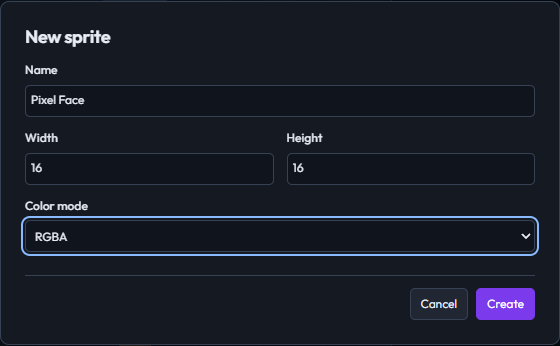
The New sprite dialog has the name, 16×16 dimensions, and RGBA mode ready to create.
2. Fit the canvas
Open View options → Fit. Leave Brush = 1. Pixel coordinates in this lesson start at (0, 0) in the top-left corner; use the bottom coordinate readout while hovering to find a pixel.
3. Choose the face color
In Color / Palette, set the FG color to #facc15. Select Rectangle, open Brush options, and enable Filled.
4. Draw the face
Drag from pixel (2, 2) to (13, 13), then release. The yellow square should leave a transparent two-pixel border.
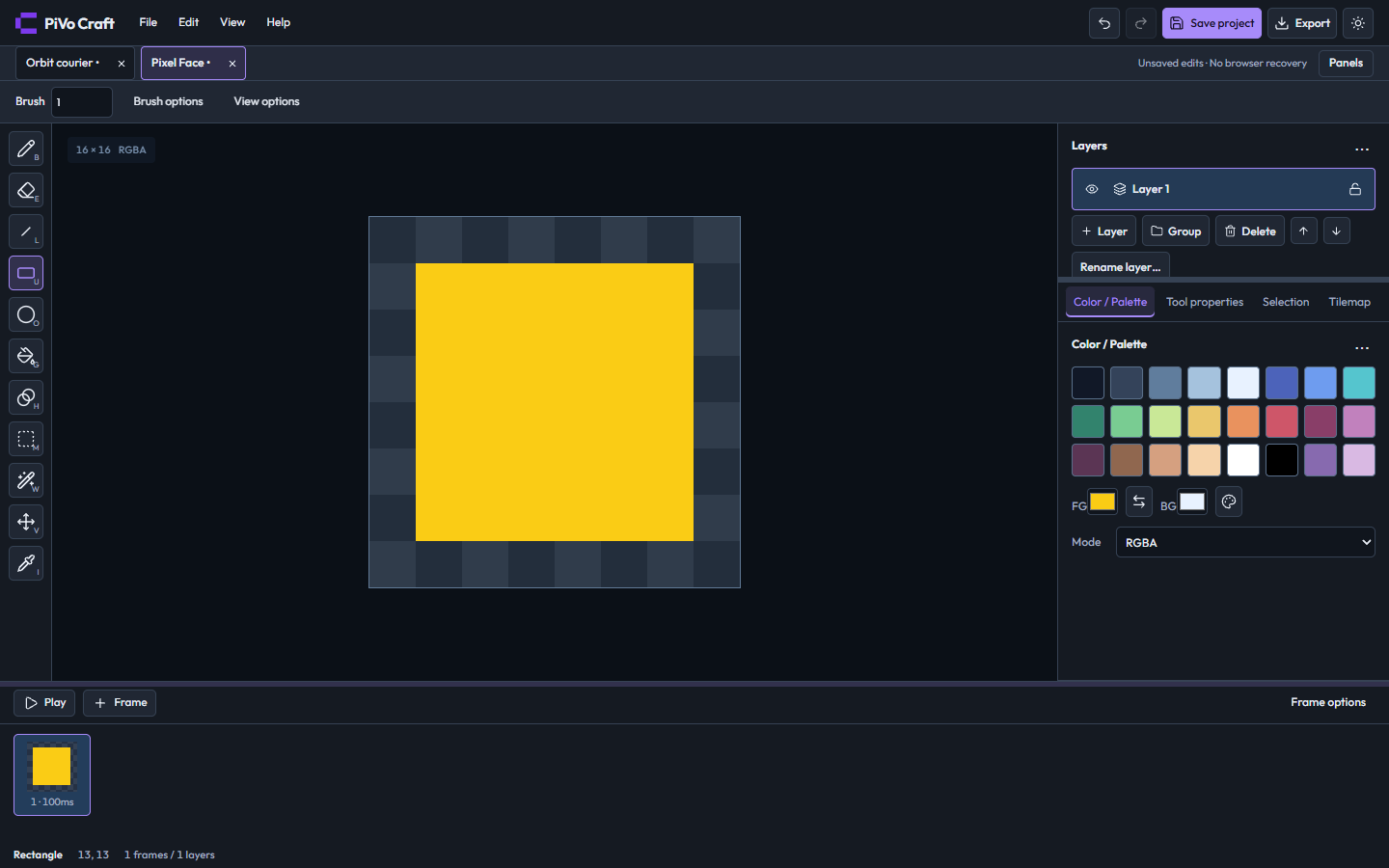
A filled yellow rectangle leaves a checkerboard border around the face.
5. Draw the eyes
Choose Pencil and set FG = #182131. Draw a short vertical stroke from (5, 5) to (5, 6), then another from (10, 5) to (10, 6).
6. Add the smile
Click (5, 10), draw a line of pixels from (6, 11) to (9, 11), then click (10, 10).
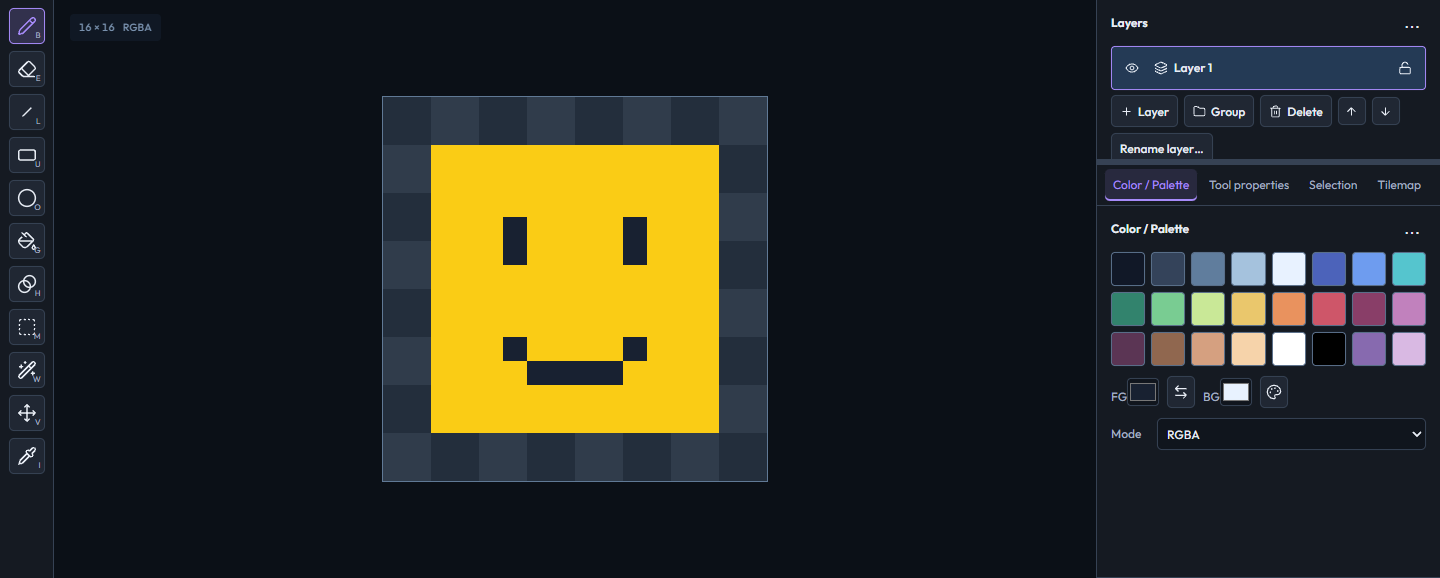
The pencil adds two eyes and a stepped smile inside the yellow face.
7. Undo a practice mistake
Click pixel (0, 0) once. Use the header's Undo button or press Ctrl/Cmd+Z with the canvas focused. The extra pixel should disappear.
8. Save your sprite
Click Save project. Keep the downloaded .pvc file; you can name it pixel-face.pvc. The checkerboard represents transparency rather than a painted background.
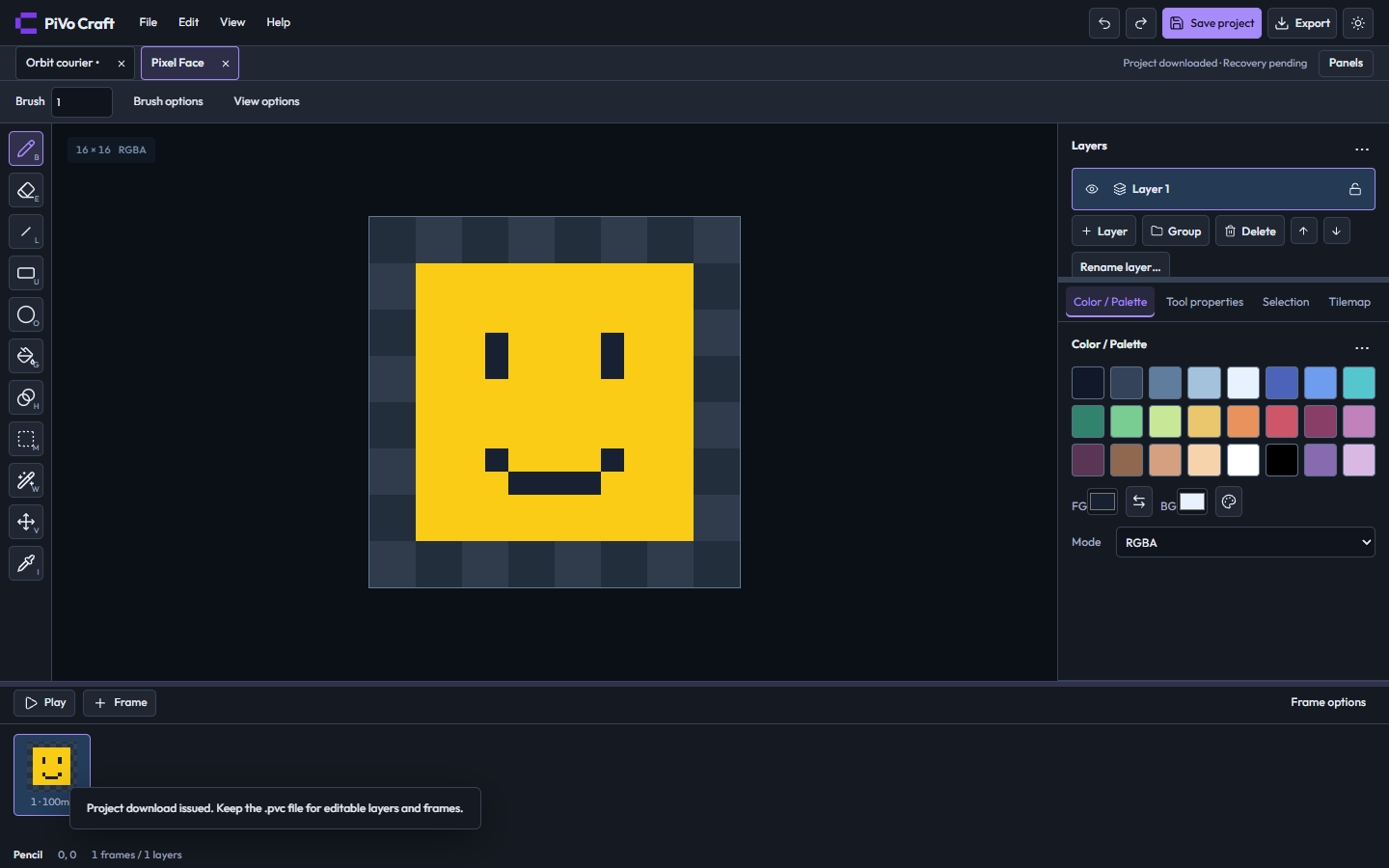
The completed face has one frame and one layer and is saved as an editable project.
Finished result
A yellow face with dark eyes and a smile, on a transparent 16×16 canvas.
Download the finished project.
If something looks different
If the rectangle is only an outline, enable Brush options → Filled. If the pencil looks too thick, set Brush = 1. Color inputs must be changed in the Color / Palette tab.